App Authorization (OAuth 2.0)
Jobber uses the OAuth 2.0 authorization code grant to allow apps to access a Jobber user's account on their behalf. This page covers the full authorization flow, from generating an authorization URL to receiving and using tokens.
If you are new to OAuth 2.0, the key concept is this: rather than using a static API key, a company admin for each Jobber account must explicitly authorize your app to access its data. Once authorized, Jobber issues your app a set of tokens it can use to make API requests on behalf of that specific account, limited to the scopes granted.
Client ID and Client Secret
After you create your app, Jobber will give you a client identifier and a client secret. The client ID is a publicly exposed string. Jobber uses it to identify the application. It's also used to build authorization URLs that are presented to users.
Jobber uses the client secret to authenticate the identity of the application. You must keep it private between the application and the API.
If you suspect your client secret has been compromised, you can regenerate it from the Manage Apps page in the Developer Center. Regenerating the secret:
- Invalidates the old secret immediately. The old value can no longer authenticate token endpoint calls (authorization-code exchanges or refresh-token redemptions).
- Revokes all refresh tokens issued under the old secret.
- Does not invalidate access tokens that have already been issued. Existing access tokens continue to work until their natural expiration (default 60 minutes, see Refreshing Access Tokens below). After they expire, the integration will stop working until the user re-authorizes, since no new access tokens can be minted under the old secret.
To minimize disruption to connected users when regenerating, we recommend
calling the appDisconnect mutation on currently
connected accounts first. That routes affected users through a fresh
authorization flow rather than leaving them with silent 401s once their access
token expires.
Authorization flow
Jobber implements the authorization code grant type. This is the most commonly used OAuth 2.0 grant type because it is optimized for server-side applications where source code is not publicly exposed and Client Secret confidentiality can be maintained. It is a redirection-based flow, which means your application must be capable of interacting with the user's web browser and receiving authorization codes that are routed through it.
At a high level, the flow works as follows:
- The client requests authorization from the user.
- The user reviews and approves access.
- The client receives an authorization code.
- The client requests an access token, presenting its own identity and the authorization code.
- The authorization server issues an access token and refresh token to the client.
- The client requests a resource from the resource server, presenting the access token for authentication.
- The resource server serves the resource to the client.
The sections below walk through each step in detail for Jobber's implementation.
Step 1: The client requests authorization from the user
There are two ways for the Authorization Code Flow to begin. Either the Jobber
admin user clicks on the Connect button from the app listing in Jobber's App
Marketplace, or the admin user accesses an authorization link of the form:
https://api.getjobber.com/api/oauth/authorize?response_type=code&client_id=<CLIENT_ID>&redirect_uri=<CALLBACK_URL>&state=<STATE>&code_challenge=<CODE_CHALLENGE>&code_challenge_method=S256
Here is an explanation of the authorization link components:
https://api.getjobber.com/api/oauth/authorizeis the API authorization endpoint.<CLIENT_ID>: Your app's Client ID from the Developer Center.<CALLBACK_URL>: The OAuth Callback URL configured on your app.<STATE>: A random string generated by your app, used to verify the response.<CODE_CHALLENGE>: The base64url-encoded SHA-256 hash of a PKCE code verifier, without padding.
Jobber recommends using Proof Key for Code Exchange (PKCE)
for every authorization request your app initiates. Generate a unique, cryptographically random
code_verifier containing 43–128 unreserved characters, store it securely for
the duration of the flow, and derive the code_challenge from it. Jobber only
supports the S256 challenge method. If you use PKCE, include both
code_challenge and code_challenge_method in this request.
If Jobber initiates the authorization flow from the App Marketplace, no state
or PKCE parameters are included.
Step 2: User reviews and approves access
When the user clicks the link above or clicks on the Connect button from
Jobber's App Marketplace, they will be prompted to authorize the scopes of the
app (as configured in the Developer Center) and they must click on the
Allow Access button to proceed. If the user was not already logged in to their
Jobber account in the current browser, then they will first be prompted to log
in before seeing the screen below:
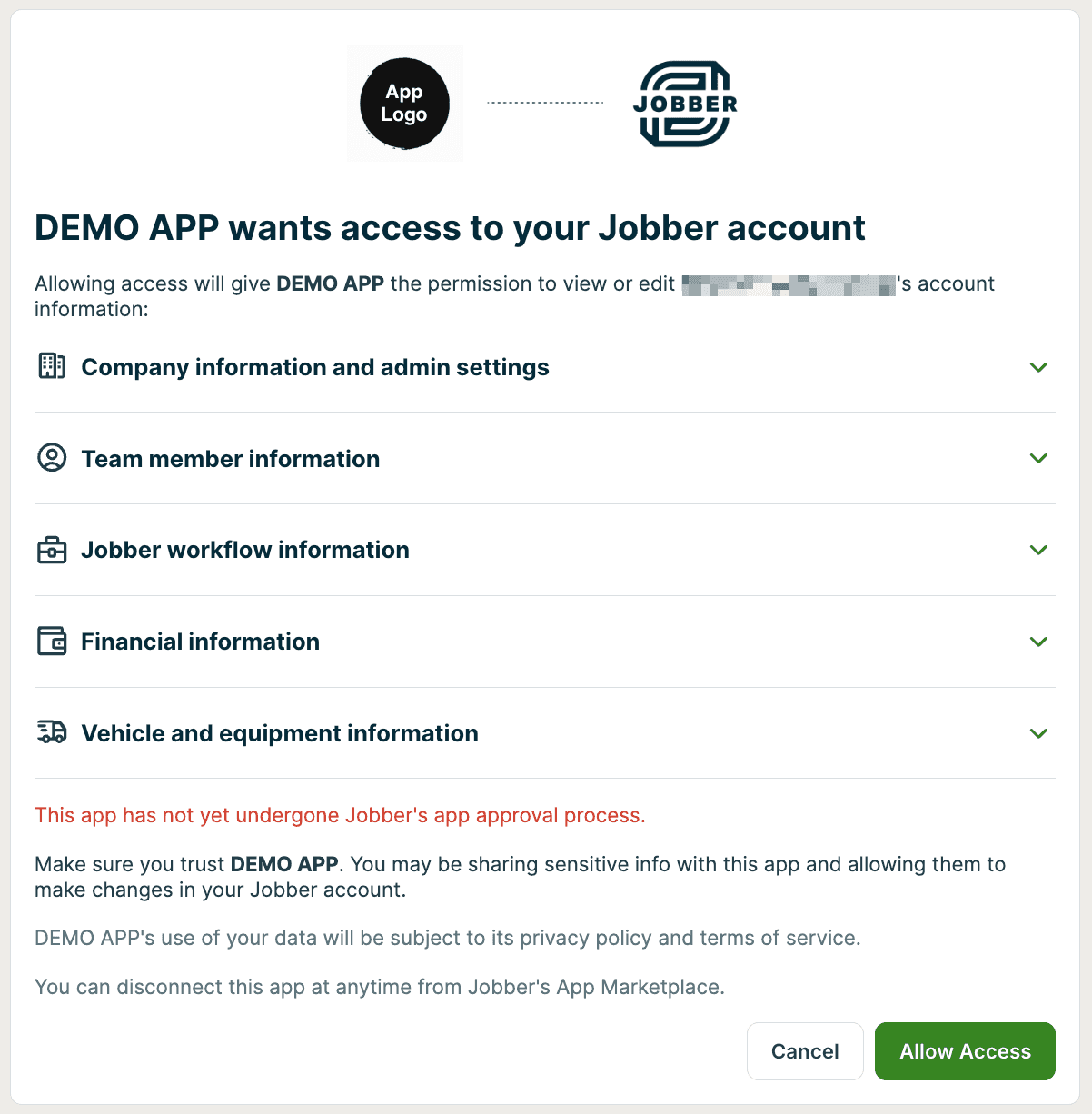
If the user chooses to deny the access request, the user-agent is handled based on how the OAuth flow was initiated:
- If the flow was started from the App Marketplace (“Connect” button): the user-agent is redirected back to Jobber's App Marketplace listing.
- If the flow was initiated externally (outside of Jobber): the user-agent is not redirected and remains on the current page. In this case, the cancel action does not trigger a redirect, and the user must close the tab or navigate back manually. Jobber does not currently support returning the user-agent to the original external source after a denied request.
Step 3: Receive the authorization code
If the user chooses to approve the access request, Jobber redirects the user-agent to your application's redirect URI, along with an authorization code.
https://yourapplication.com/callback?code=AUTHORIZATION_CODE&state=STATE
At this point the client should check that the state parameter matches the value if a state parameter was included in Step 1.
Authorization codes expire after 10 minutes and can only be used once. Exchange the code promptly and do not retry a successful exchange with the same code.
Step 4: Request an access token
Send a POST request to Jobber's token endpoint to exchange the authorization code for tokens. This request must be made from your server, not from client-side code, so that the Client Secret is not exposed.
POST /api/oauth/token HTTP/1.1
Host: api.getjobber.com
Content-Type: application/x-www-form-urlencoded

client_id=CLIENT_ID&client_secret=CLIENT_SECRET&grant_type=authorization_code&code=AUTHORIZATION_CODE&redirect_uri=REDIRECT_URI&code_verifier=CODE_VERIFIER
When PKCE was included in the authorization request, code_verifier is
required and must be the original value used to create the code challenge. PKCE
does not replace the Client Secret. An invalid verifier returns a 400
invalid_grant response.
Step 5: Receive the access token and refresh token
A successful response looks like this:
{
  "access_token": "eyJ0eXAiOiJKV1QiLCJhbGciOiJIUzI1NiJ9.eyJ...MH0.FAz4g5Q-UugrsjU4OuSB0PwHXDqsxcc-mRa4BW2lNJw",
  "refresh_token": "5dd9bed1bd99b837cd3acaf2f59fb8fa",
  "token_type": "Bearer",
  "expires_in": 3600
}
This example does not contain a complete access token. The actual access token contains three components:
encodeBase64(header) + '.' +
encodeBase64(payload) + '.' +
encodeBase64(signature)
Store both tokens securely. The access token is a standard JWT token whose payload contains an exp field encoding the expiry time. Access tokens expire after 60 minutes. The refresh token is used to obtain new access tokens without requiring the user to re-authorize.
After receiving a new access token, it is recommended to query the account object to retrieve and store the account's id and name. This associates the tokens with a specific Jobber account in your system, which is important for tracking connections and handling disconnects correctly.
query GetAccount {
  account {
    id
    name
  }
}
Step 6: Request a resource using the access token
Include the access token in the Authorization header of every API request:
curl -X POST \
  -H "Authorization: Bearer <ACCESS_TOKEN>" \
  -H "X-JOBBER-GRAPHQL-VERSION: 2025-04-16" \
  -H "Content-Type: application/json" \
  -d '{"query": "{ account { id name } }"}' \
  https://api.getjobber.com/api/graphql
Step 7: Receive the resource
If the access token is valid, the API processes the request and returns the requested data. If the access token is invalid or expired, the API returns a 401 "Invalid Token Error". At that point, use the refresh token to obtain a new access token. See Refreshing access tokens below.
Refreshing access tokens
Use the refresh token to obtain a new access token without requiring the user to go through the authorization flow again.
POST /api/oauth/token HTTP/1.1
Host: api.getjobber.com
Content-Type: application/x-www-form-urlencoded

client_id=<CLIENT_ID>&client_secret=<CLIENT_SECRET>&grant_type=refresh_token&refresh_token=<REFRESH_TOKEN>
A successful response returns a new access token and, if Refresh Token Rotation is enabled, a new refresh token. Always store the returned refresh token, overwriting the previous one. You do not need to wait for the access token to expire before refreshing.
When refresh tokens expire
A refresh token becomes invalid in the following situations:
- The Jobber admin user disconnects the app via the App Marketplace
- The
appDisconnectmutation is called - The account is automatically disconnected due to account churn, plan downgrade, or admin user deactivation
- The app's Client Secret is regenerated (developers can self-serve this from the Developer Center, see Client ID and Client Secret above)
- The app connection is re-authorized after a scope change
If the refresh token becomes invalid, the user will need to go through the authorization flow again from Step 1.
Handling App Disconnects
Handling disconnects correctly is required for apps published in the Jobber App Marketplace. After a Jobber account connects to an app (meaning the authorization code has been granted), there are two mechanisms for the account to disconnect the app:
User disconnects from Jobber
When a Jobber admin user clicks the Disconnect button on the App Marketplace listing, all access and refresh tokens for that account are immediately invalidated and the APP_DISCONNECT webhook fires. Your app must be subscribed to this webhook and must respond by removing the stored tokens for that account and marking the connection as inactive in your system.
During the App Review process, Jobber verifies that your app correctly handles this webhook before approving publication.
User disconnects from your app
If your app supports disconnecting from within its own interface, use the appDisconnect mutation to notify Jobber. This ensures the app shows as disconnected on the Jobber side and invalidates the associated tokens. See below for an example of using the appDisconnect mutation:
mutation Disconnect {
  appDisconnect {
    app {
      name
      author
    }
    userErrors {
      message
    }
  }
}